Summary: Merging two .picasa.ini files (certainly with Ghisler’s Total Commander) you will get all original pictures into one .picasaoriginals file, no loss of data. – The two .picasa.ini files will conflict. You will loose one. Don’t really mind. See below.
Old
Picasa, this fine picture editing program, I still use it, I still like it, and it continues to do a fine job for me. We are now in October 2017.
It grabs the picture folders you give it, but does not alter the pictures there if you edit them. Even when you upload some of them to Google Pictures, it doesn’t. It sends the modified pictures into the cloud all right, but your hard disc original pictures stays the same.
 |
If you want to store a pictures treated with Picasa
back ono disc you must command it. |
If you want to permanently alter your filed pictures according to Picasa’s changes, you must do so expressedly by commanding it to Picasa one picture at a time by right mouse click and “store” (»Speichern« in the screenshot of
Bardaï at right, Ctrl+S) when Picasa has this picture wide open, or hit the floppy disc symbol (»Diskette«) up above the file view to do so for all pictures that Picasa had altered for the whole folder. If you work with Picasa you’ll know that.
Every time Picasa messes around with your pictures
on your hard disc it stores the original as a backup. You never lose anything! Say, you want to add a modified picture to Whatsapp: You must first store it from Picasa to disc.
 |
| Invisible files and folders – show them! Within all folders. – To see Picasa.ini |
Picasa’s backup is stored in an extra Picasa generated “hidden” folder right at the beginning of your specific picture folder. As it is hidden, you won’t see it with your standard windows explorer, unless you tell your windows explorer to
show hidden folders and files, and – I suggest – to show the type of files too. Click windows explorer, Extras, folder options (Ordneroptionen), view (Ansicht), files and folders (Dateien und Ordner), hidden files and folders (Versteckte Dateien und Ordner), show hidden files and folders (Ausgeblendete Dateien und Ordner anzeigen). This is
not the standard setting, you must actively change it! Otherwise you won’t see your backed up original pictures.
I suggest:
Do not throw away the Picasa backup files. If you want to save disc space, take pictures with less megapixels in the first place, like 5 Megapixels or less. That’s enough for practically all cases and lightens processing, storing and editing pictures.
So now when you open a picture folder with the Windows Explorer –
– you’ll see the hidden folder
.picasaoriginals, followed by the up-to-date pictures.
Go on and open the folder .picasaoriginals. Here’s what you see (in details):
Before all the backed up pictures you have a small file named .picasa.ini or, in the olden days, .Picasa.ini with capital P.
Take a closer look. The original picture Elmar (2).JPG as stored under .picasaoriginals has a size of 2243 kilobytes or 2.2 MB (typical for 5 megabyte pictures). That’s the
full picture. The one you have very visibly in the mother folder above is the
edited picture by Picasa: just 605 kilobytes. I guess I cut out just a part of the picture to show just that in the album (I prefer square format). So:
If you delete the .picasaoriginals folder, you’ll loose the originals forever!
You also see in this example, that picture Elmar (1).JPG has not been stored under .picasaoriginals, as I had not treated it with Picasa at all. No waste of disc space by Picasa.
Now let’s look
into the file .picasa.ini. It’s a text file, and you open it with the
Editor or
Wordpad. For each modified picture you have an entry, first naming the picture name in [brackets]. Here is the entry for one picture, from a continuous Ascii list:
[Elmar (2).JPG]
filters=crop64=1,579922efa1cce2aa;enhance=1;
crop=rect64(579922efa1cce2aa)
moddate=fee712e45552d301
width=2560
height=1920
textactive=0
You remember: picture Elmar (2).JPG had been severely cropped. To decode more of .picasa.ini look at F. Buchinger’s .picasa.ini decoded: https://gist.github.com/fbuchinger/1073823/9986cc61ae67afeca2f4a2f984d7b5d4a818d4f0. For me, it doesn’t really give the secrets.
If you merge two folders treated by Picasa from two computers, say from yout travel laptop and your desktop computer, perhaps by “synchronizing” them with Christian Ghisler’s total commander, you will get all original pictures into one .picasaoriginals.
The two files in .picasaoriginals named .picasa.ini will conflict. Typically the younger one will survive, the oder one gets lost. – So what? Please let me know if I’m wrong.
You will always keep all original pictures, you will always keep the latest changed version, you may loose the way they were made. Don’t even bother to delete the .picasa.ini text files, they are small in respect to one picture.
Loosing one of the .picasa.ini files, without having “saved” the resulted pictures with Picasa, you loose the editing process and have to repeat it if you want to see the result again. So Picasa-“save” all pictures, especially if you want to store them to a Google Photos album, as this is not possible directly from Picasa any more since April 2018.
 |
Elmar (2).JPG after
cropping by Picasa |
Picasa is a relatively small piece of software, the one installation file just 17 MByte. As far as I know it runs on all Windows’, even on 10.
Look for picasa39-setup.exe
Permalink:
https://blogabissl.blogspot.com/2017/10/picasaini-picasaini-use-and-merging-2017.html
In case you are curious about the picture Elmar (2).JPG. It was not cropped to square, but to a lenghty orange faucet with a lot of white.


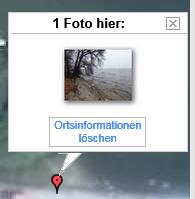 When re-upload pictures to Google photo albums take care that you have the most recent caption (Bildunterschrift), not only the precise (or purposely misleading … ) geolocation. By the way: You can even purge (löschen) the location.


